Lapse PowerPoint Template: A Comprehensive Guide to Its 150 Slides, 5 Color Variations, and Advanced Features
Creating a professional presentation that captures attention and communicates ideas effectively is a challenge faced by students, business professionals, educators, and creatives alike. The Lapse PowerPoint Template offers a robust solution, combining aesthetic elegance with functional versatility. This comprehensive guide explores every aspect of the Lapse template—from its 150 total slides and five unique color variations to its handcrafted infographics, resizable graphics, and master slide architecture. Whether you are preparing a corporate pitch, a university lecture, or a creative portfolio, understanding these features will help you leverage the template to its fullest potential.
What Is the Lapse PowerPoint Template?
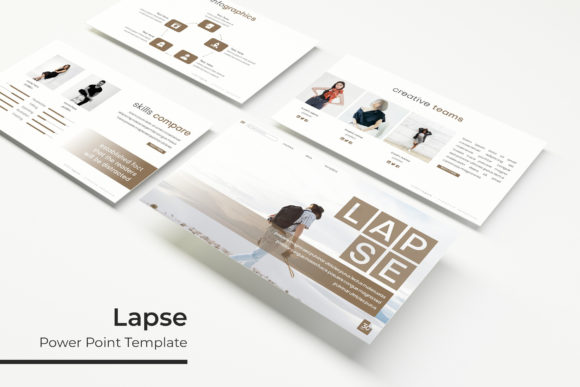
The Lapse PowerPoint Template is a premium presentation design package that includes 150 slides distributed across five distinct templates, each featuring a unique color scheme. Designed for both beginners and experienced presenters, it relies on master slides to ensure consistency and ease of editing. The template is built around the concept of “lapse”—evoking a sense of time, progression, and clean transitions—which makes it ideal for timelines, project updates, and storytelling presentations.
At its core, Lapse provides a drag-and-drop picture placeholder system, pixel-perfect illustrations, and fully resizable, editable graphics. It also includes pre-designed section break slides, a gallery and portfolio slide, and handcrafted infographic layouts. The package comes with five PPTX files (all widescreen format), a Readme file, and a link to the free font used—ensuring you have everything you need to start creating immediately.
Key Features That Set Lapse Apart
Understanding the specific features of the Lapse template helps you decide whether it fits your project needs. Below we break down each major component, explaining its purpose and practical value.
150 Total Slides – Five Templates, 30 Slides Each
The most immediately quantifiable feature is the 150 total slides. These are organized into five separate templates, each containing 30 slides. This organization allows you to choose a theme or color variation without losing access to the same structural elements. Each 30-slide set includes title slides, content slides, timelines, charts, infographics, section breaks, portfolio pages, and closing slides. Whether you need a short 10-slide pitch or a full 30-slide report, you can pick and mix from the collection.
Why 150 slides matter: Many templates offer only 20–40 slides. Lapse’s abundance gives you flexibility. You can create multiple presentations without starting from scratch, or combine slides from different color variants to create a unique look. The 30-slide structure also ensures that each template is complete enough to stand alone.
5 Premade Colors – 30 Slides for Each Template, 5 Color Variations
The Lapse template comes with five premade color schemes, each applied to a separate PPTX file. These color variations are designed to suit different industries and moods—for example, a cool blue for corporate, a warm orange for creative presentations, a neutral gray for minimalistic designs, a green for environment or finance topics, and a rich purple for luxury or educational content.
Using color variations: You do not need to manually adjust every slide. Open the PPTX file that matches your preferred color scheme. All 30 slides within that file are already color-consistent. If you change your mind later, you can copy slides from another color-variant file. This saves hours of manual theming.
Handcrafted Infographics in PowerPoint
Infographics are essential for simplifying complex data. The Lapse template includes handcrafted infographic slides built directly in PowerPoint—no external software required. These infographics use charts, icons, diagrams, and timelines that are fully editable. You can change colors, resize elements, and update text to match your data.
Practical relevance: Instead of creating infographics from scratch or using static images, you can modify these pre-built designs. For example, a timeline infographic can be adjusted to show product launch phases, and a comparison infographic can be used to contrast before-and-after scenarios.
Section Break Slides
Long presentations benefit from visual separation. The Lapse template includes section break slides—full-page designs that introduce a new topic or chapter. These slides typically feature minimal text, a bold heading, and a background graphic that aligns with the overall theme.
Example use case: In a business presentation covering three quarters, you insert a section break before each quarter’s data. This gives the audience a mental reset and improves retention. The section break slides in Lapse are designed to be dramatic yet clean, making transitions professional.
Gallery and Portfolio Slide
A dedicated gallery or portfolio slide is included in each template. This slide is optimized for displaying images, screenshots, or project samples in a grid layout. The picture placeholders are pre-sized and aligned, so you can drag and drop images without worrying about alignment.
Who benefits: Photographers, designers, real estate agents, or anyone showcasing visual work. You can replace placeholder images with your own and instantly have a polished portfolio spread. The gallery slide can also be duplicated to create multi-page portfolios.
Resizable and Editable Graphics – Picture Placeholder (Drag & Drop)
All graphics in Lapse are resizable and editable. This means you can scale icons, illustrations, and shapes without losing quality (since they are vector-based). The picture placeholder feature allows you to simply drag and drop an image from your computer into the designated frame. No need to crop or resize manually; the placeholder automatically masks the image to fit.
Why this matters: Traditional templates often require you to right-click, change picture, or adjust sizing. Lapse’s drag-and-drop approach saves time and reduces frustration, especially for users less familiar with PowerPoint.
Based on Master Slides
The entire Lapse template is built on master slides. This is a fundamental PowerPoint feature that allows you to make global changes. If you want to change the font, background color, or logo across all slides, you edit the master slide once, and every slide that uses that layout updates automatically.
E-E-A-T note: Master slides ensure consistency, which is a hallmark of professional presentations. For users new to PowerPoint, this means you can apply a corporate brand color to the master, and it propagates through all 30 slides. This is far more efficient than editing each slide individually.
Pixel-Perfect Illustrations
Every illustration in the Lapse template is designed to be pixel-perfect. This means icons, shapes, and diagrams are crisp at any screen resolution. They are not low-resolution raster images but rather high-quality vector graphics embedded in PowerPoint. You can enlarge them without pixelation.
Clarifying a common misunderstanding: Some users assume that “pixel-perfect” means the graphics cannot be edited. In reality, it refers to the visual clarity—they look sharp on Retina displays and projectors. These graphics are fully editable, so you can change colors, sizes, and even reshape them.
What’s Included in the Lapse Package
When you download the Lapse PowerPoint Template, you receive the following files and resources:
- 5 PPTX Files – Each file corresponds to one of the five premade color variations. All 30 slides per file are fully editable.
- 5 PPTX Widescreen (16:9) – All files are widescreen format, optimized for modern projectors and monitors.
- 5 Premade Colors – As described, each file uses a distinct color palette.
- Readme First – A documentation file that explains how to install fonts, use the template, and customize slides.
- Font Used (Free Font Download Link Included) – The template uses a specific font for headings and body text. The link directs you to a free download, so you don’t need a paid license.
- Important Note: All photographs or pictures used in the preview are not included. They are intended for illustration purposes only. The template includes placeholders that you replace with your own images.
How to Use the Lapse Template Effectively
To get the most out of this template, follow these practical steps:
- Choose your color file: Open the PPTX that best matches your brand or topic. If uncertain, start with a neutral color that you can later tweak.
- Read the Readme file: Install the recommended font first. Without it, your text may fall back to a default font, breaking the design.
- Replace placeholder images: Simply drag and drop your own images into the picture placeholders. Use high-resolution photos to maintain quality.
- Edit infographics: Click on any chart or diagram to modify the text, numbers, or colors. For example, adjust a horizontal bar chart to reflect your sales figures.
- Add section breaks as needed: Copy a section break slide and insert it before each major topic in your outline.
- Leverage master slides: If you want to change the accent color globally, go to View > Slide Master, select the master slide, and update the color scheme. All slides will update.
Practical Applications Across Different Fields
The Lapse template is versatile enough for many use cases:
- Business: Quarterly reports, investor pitches, strategic plans. Use the timeline and comparison infographics to showcase growth.
- Education: Lecture slides, student project presentations, course modules. The gallery slide works well for showing student work.
- Creative industries: Portfolio reviews, design proposals, photography presentations. The clean layout puts visuals front and center.
- Nonprofit and government: Annual reports, community updates, policy proposals. The professional look builds trust.
Addressing Common Misunderstandings
Two points often cause confusion among new users:
1. “Can I edit the illustrations?” Yes. Despite being pixel-perfect, all illustrations are editable PowerPoint shapes. Right-click any icon or shape and select “Edit Points” or “Format Shape” to adjust colors, size, or outline.
2. “Will it work on older versions of PowerPoint?” The files are saved in .pptx format, compatible with PowerPoint 2007 and later. Some advanced features (like drag-and-drop placeholders) work best in PowerPoint 2016 or newer, but basic editing is still possible in older versions.
Why Lapse Stands Out in a Crowded Market
There are thousands of PowerPoint templates available, but Lapse excels because of its balance between quantity and quality. 150 slides across 5 color variations means you have a huge library of layouts. The handcrafted infographics and pixel-perfect illustrations save design time. The master-slide foundation ensures that even large teams can maintain brand consistency. Moreover, the inclusion of a Readme file and free font link lowers the barrier for non-designers.
In modern work and education environments, where presentations are a primary communication tool, having a reliable, flexible template like Lapse can significantly improve the clarity and impact of your message. By understanding its features—from the gallery slide to the drag-and-drop placeholders—you can create presentations that are not only visually appealing but also structurally sound.
Conclusion
The Lapse PowerPoint Template is more than just a set of slides; it is a comprehensive tool for anyone who needs to present information effectively. Its 150 slides, five color variations, handcrafted infographics, section breaks, portfolio slides, and resizable graphics are designed to adapt to a wide range of topics and styles. By leveraging master slides and the included font, you can produce a cohesive presentation with minimal effort. Remember that the preview images are not included—you supply your own photographs to make the presentation truly yours. Whether you are a beginner looking to learn PowerPoint or an experienced presenter seeking efficiency, Lapse provides a solid foundation.